When an employee connects an AI assistant to their mailbox, drive, calendar or code host, they usually click through an OAuth consent screen. That click is a grant: the tool can now act on the employee's data with the permissions it asked for. The grant stays in place after the employee has stopped thinking about it.
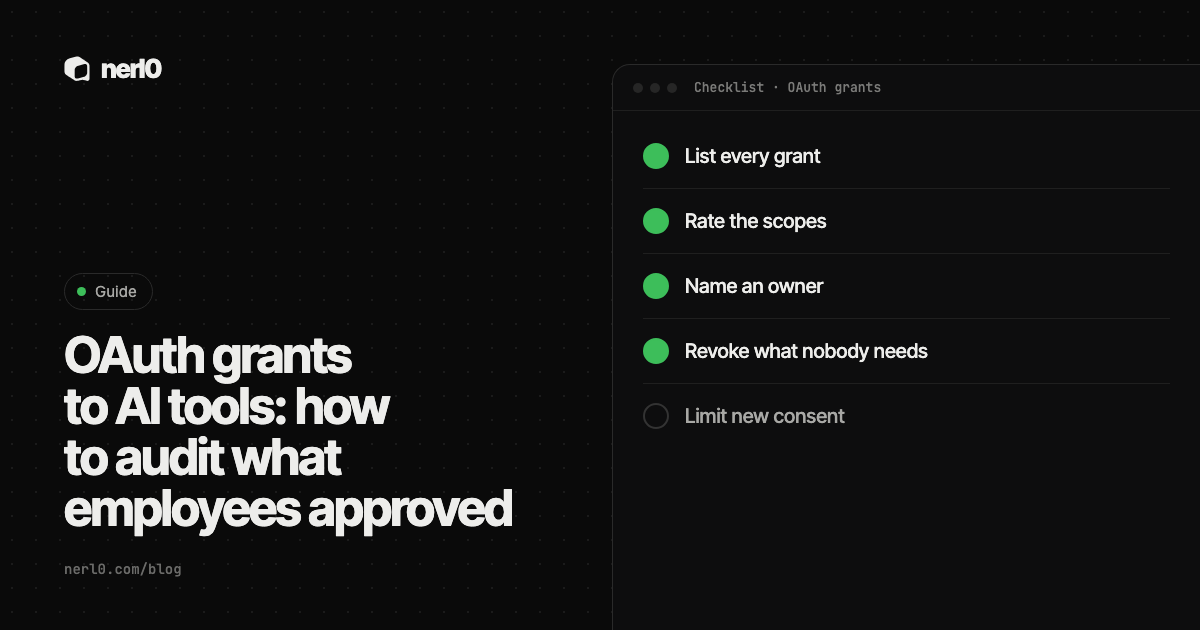
The short answer: audit these grants like any other access. List every grant in your identity platform, rate the scopes, name an owner for each app, revoke what nobody needs, and tighten who may consent next. The steps below cover Microsoft Entra and Google Workspace, using each vendor's own documentation.
In this piece, we will cover:
- What a consent grant is and why it outlasts attention
- How to list grants in Microsoft Entra and Google Workspace
- Which scopes deserve a closer look
- Ownership, revocation and limiting new consent
- Where nerl0 fits
What is an OAuth grant to an AI tool?
According to Microsoft Learn, consent is the process in which a user grants an application permission to reach a protected resource. The application asks for API permissions, for example to read a user's profile and the contents of their mailbox. When a user consents, the application acts as that user, and Microsoft calls these delegated permissions. Microsoft adds that the consent is recorded and the user usually does not have to consent again on later sign-ins.
That last point is the audit problem. A recorded grant does not expire when the pilot ends or when the employee changes role. An AI tool that someone tried once can keep its access until somebody removes it. Because no person types a password for it each day, it behaves like a non-human identity.
There is a second kind of grant. Admin consent, per Microsoft, can be given on behalf of the whole organization, and the application may then get direct access to an API with no signed-in user. Microsoft calls this a sensitive operation and names role management, full access to all mailboxes or all sites, and full user impersonation as examples of what it can allow.
How do you audit grants, step by step?
- Inventory. List every app that holds a grant, for users and for the whole organization, with its publisher and the scopes it holds.
- Rate the scopes. Mark which grants can read or write mail, files or calendars, and which only read basic profile data.
- Name an owner. Attach one person or team to each app who can say why it is needed.
- Decide. Keep, narrow or revoke. Anything with no owner and no clear use is a revoke candidate.
- Revoke. Remove the grant in the platform, then confirm the app no longer has access.
- Tighten consent. Change who may consent in future, so the list does not refill.
- Repeat. Schedule the review. A grant list describes the day you pulled it.
How do you list grants in Microsoft Entra?
Microsoft Learn describes the portal route. Sign in to the Microsoft Entra admin center as at least a Cloud Application Administrator, go to Enterprise apps, open the application and select Permissions. The Admin consent tab shows permissions granted for the whole organization. The User consent tab shows permissions granted by specific users or groups.
For a tenant-wide list you will want a script instead of clicking app by app. Microsoft documents Microsoft Graph calls for this: delegated grants for a service principal are read from its oauth2PermissionGrants, and application permissions from its appRoleAssignments. Microsoft Graph PowerShell offers matching cmdlets.
Two limits matter. First, Microsoft states that you cannot revoke permissions on the User consent tab in the portal. For those you need Graph API calls or PowerShell. Second, revoking a grant does not stop users from consenting again. Microsoft says you must stop the app from requesting the permissions through dynamic consent, or block user consent altogether.
How do you list grants in Google Workspace?
Google's Workspace admin documentation places this under Security, Access and data control, API controls, in the Admin console. You need the Service Settings administrator privilege. The Manage App Access view lists three groups: configured apps, accessed apps that have used Google data, and apps pending review that users have asked to use.
Opening an app shows its client ID, user count, privacy policy and the OAuth scopes it has requested. Accessed apps also show which Google services they call. You can export the list to CSV. Google notes that app details can take 24 to 48 hours to appear after authorization, so a brand new grant may not show yet.
Each app can be set to one of four access levels: Trusted, Specific Google data, Limited or Blocked. Policies apply to the whole organization or to organizational units. For Gmail, Drive, Docs and Chat, admins can restrict only the high-risk scopes, such as sending mail or deleting files. Google also says that when a service is switched to Restricted, previously installed apps that are not trusted stop working and their tokens are revoked.
Which scopes deserve a closer look?
A scope is the unit of permission. Google's scope reference lists, for example, full Gmail access, which lets an app read, write, send and permanently delete all of a user's email, next to a read-only Gmail scope that only views messages and settings. The same page lists full Drive access, which can view, edit, create and delete all of a user's files. Google also advises using a non-sensitive scope when one meets the need, because many scopes overlap.
| Scope example | What the source says it allows | Audit question |
|---|---|---|
| Gmail full access | Read, write, send and permanently delete all mail | Does an AI tool need to send or delete? |
| Gmail read-only | View messages and settings without changing them | Is reading all mail still too broad for this task? |
| Drive full access | View, edit, create and delete all of a user's files | Could a narrower file scope do the job? |
| Calendar full access | View, edit, share and permanently delete calendars the user can reach | Is sharing or deleting needed at all? |
| Entra admin-consented tenant permissions | Can include role management or access to all mailboxes or all sites | Who approved this, and who owns it now? |
Read-only is not harmless. A tool that can read all mail can read everything in it. It is simply a smaller grant than one that can also send and delete. The risk grows with breadth, so rate breadth first and write access second.
Who owns the grant, and how do you limit new ones?
OWASP's Non-Human Identities Top 10 puts improper offboarding first. It describes non-human identities that are not disabled or deleted once they are no longer needed, leaving forgotten or unmonitored identities available to attackers. Its fifth risk is overprivileged identities: far more access than the function requires, which attackers can exploit if the identity is compromised. An abandoned AI tool grant can be both.
Ownership is the control that fixes the first risk. Without a named owner, nobody decides to remove a grant. Pair each app with a person, record why it exists, and review it when that person changes role. The piece on MCP servers as a doorway with credentials makes the same argument for the credentials behind an agent's tools.
To limit new grants, Microsoft lists three built-in user consent options: disable user consent, allow consent only for apps from verified publishers and only for permissions you classify as low impact, or allow users to consent to any app for permissions that do not need admin consent. Microsoft recommends allowing user consent only for verified publishers. It also describes an admin consent workflow, where a user requests approval and designated reviewers decide. Microsoft notes that changing these settings affects only future consent. Existing grants stay as they are.
A grant list shows what an app is allowed to do, not whether it did it. It does not show what an app has done with the data, and Microsoft points out that roles, Exchange RBAC and Teams resource-specific consent are other ways to grant access that the consent screen does not cover. Treat the list as the permitted surface, and use logs for actual use.
Where nerl0 fits
The audit above is an inventory question across many platforms. nerl0 maps every AI agent and non-human identity and what each can reach. It connects read-only through each platform's own interfaces and reads configuration and permission data, never the contents of data stores. The OAuth apps page is where that view starts for grants.
Issues carry severity, evidence, an owner and a recommended breakpoint, and the next scan verifies the fix. Questions are suggested, activated by you, and measured again with every scan, so a question such as which apps hold broad grants without an owner can be checked repeatedly. The Questions page shows how they work. The Security Graph shows authority paths where every step is an observed relationship; the guide to reading the Security Graph explains one.
nerl0 states what it cannot show with every answer. A path is a route, not proof of use, as a route is not proof of use explains. Revoking a grant still happens in your own identity platform.
For how MCP servers handle tokens, read MCP authentication explained.
Summary
Employees approve AI tools through OAuth consent, and those grants persist until someone removes them. List them in Microsoft Entra or the Google Workspace Admin console, rate the scopes by breadth, give each app an owner, and revoke what nobody can justify. Then tighten who may consent so the list does not refill, and repeat the review on a schedule.
Sources
- Review permissions granted to enterprise applications - Microsoft Entra ID, Microsoft Learn, accessed Oct 17, 2026
- Configure how users consent to applications - Microsoft Entra ID, Microsoft Learn, accessed Oct 17, 2026
- Overview of user and admin consent - Microsoft Entra ID, Microsoft Learn, accessed Oct 17, 2026
- Control which apps access Google Workspace data, Google Workspace Admin Help, accessed Oct 17, 2026
- OAuth 2.0 Scopes for Google APIs, Google for Developers, accessed Oct 17, 2026
- OWASP Non-Human Identities Top 10 2025, OWASP, accessed Oct 17, 2026
Sascha writes about what AI agents and non-human identities can reach, and builds nerl0 to keep that visible.